

Create a new Payment Template
Payment Templates live in Settings > Payments > Templates. Here, you can create, manage, and update templates for different types of payments.
How to Create a Payment Template
- Navigate to Settings > Payments > Templates.
- Click Create Template.
- Enter the Template Name and Description.
- Configure the following fields:
- Payment Direction
- Originating & Receiving Accounts
- Payment Method & FX Settings (Base & Target Currency, Charge Bearer, etc.)
- Additional Details (Bank Statement Description, Remittance Info, Internal Description)
- Metadata
- Ledger Transactions
- Line Items
- Configurations include:
- Showing/hiding fields on the Payment Order form
- Marking fields as required or optional
- Pre-setting inputs
- Locking fields to prevent edits
- Click Save Template – This will create Version 1 of the template.
Field configurations will not be validated while creating a template. Validations are performed while creating a Payment Order, which could flag errors in configuration.
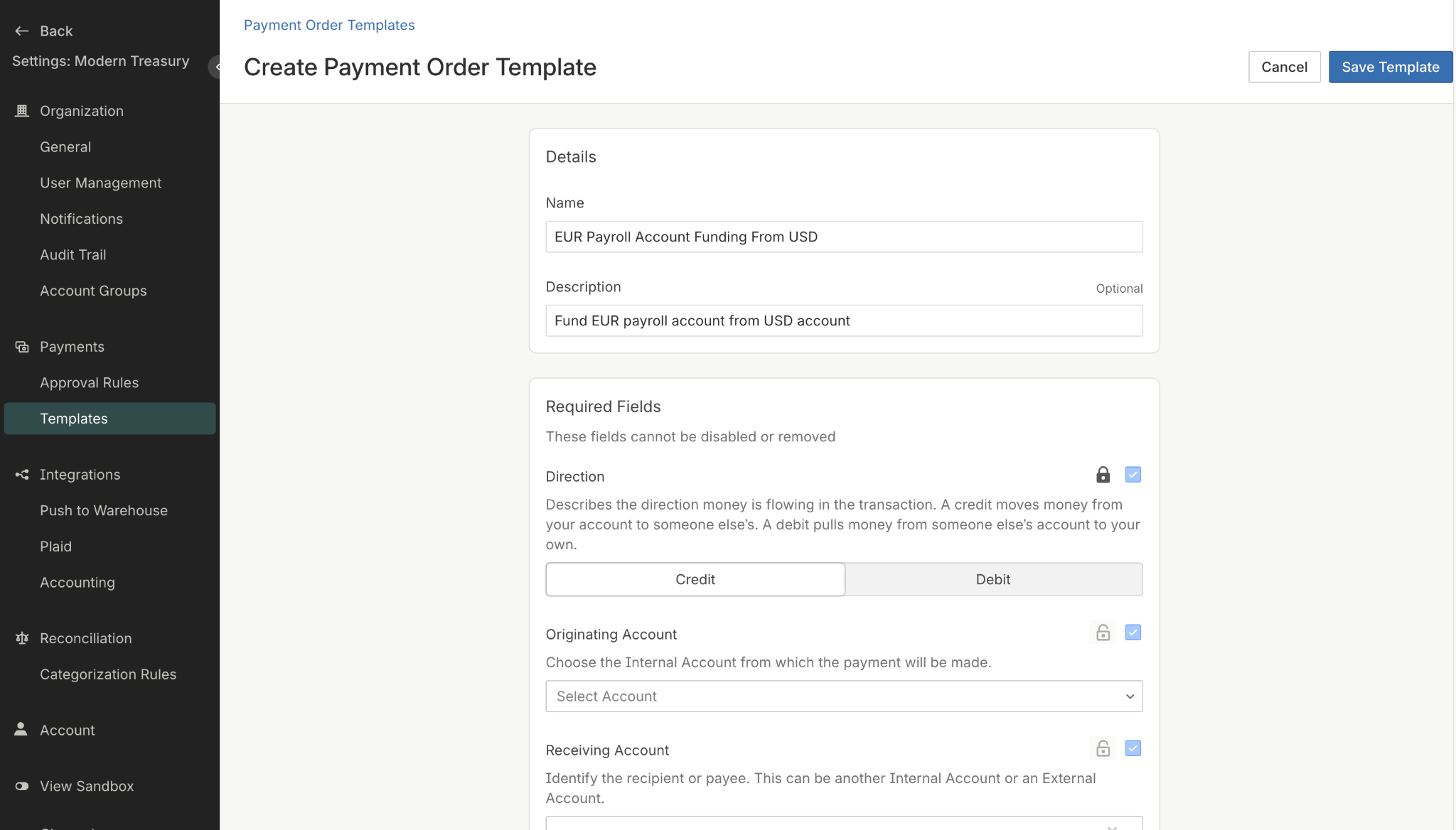
Create a unique Payment Template for each payment use case
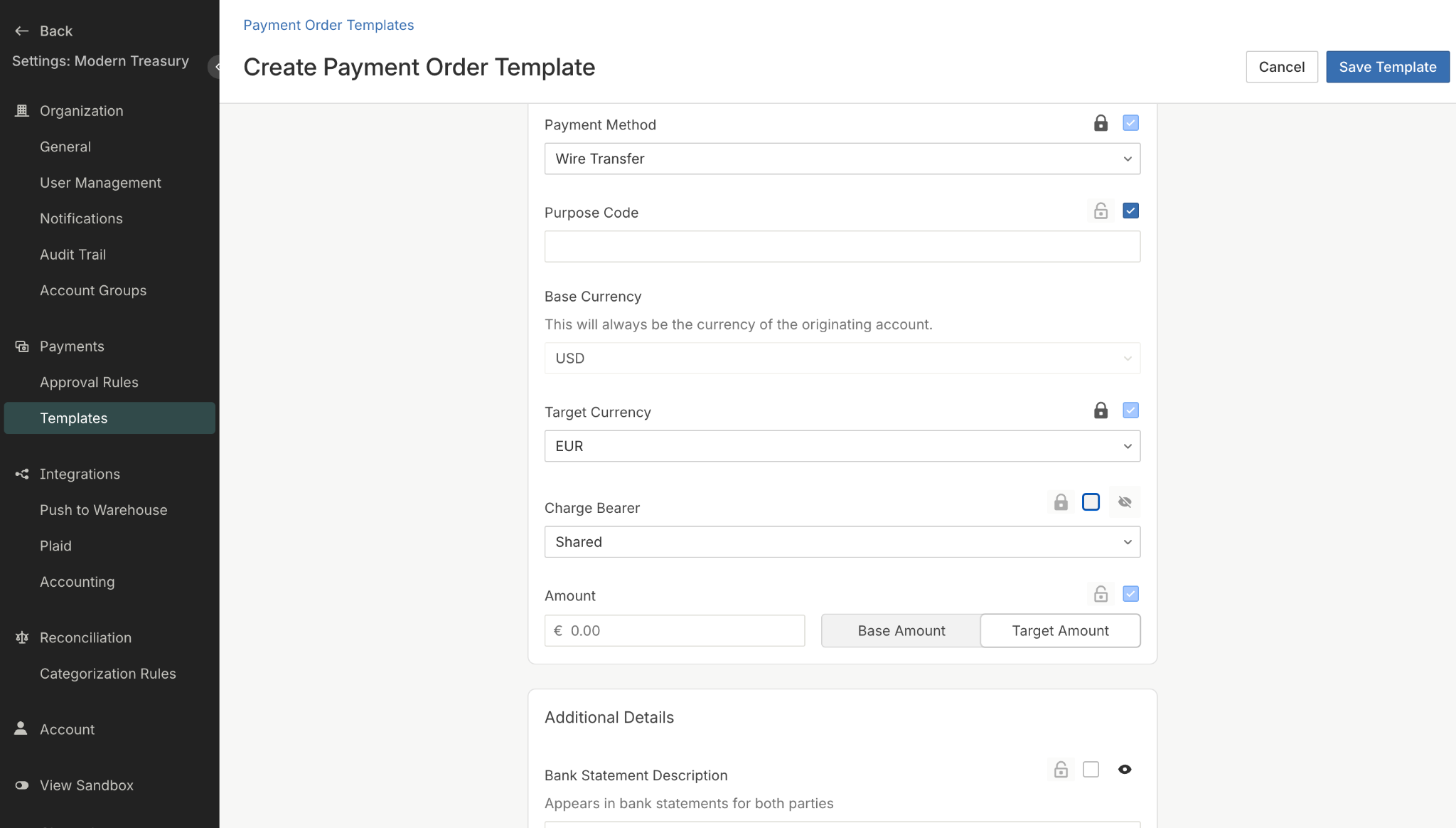
Pre-set and lock fields to ensure compliance and make it easier for your users to create a Payment Order
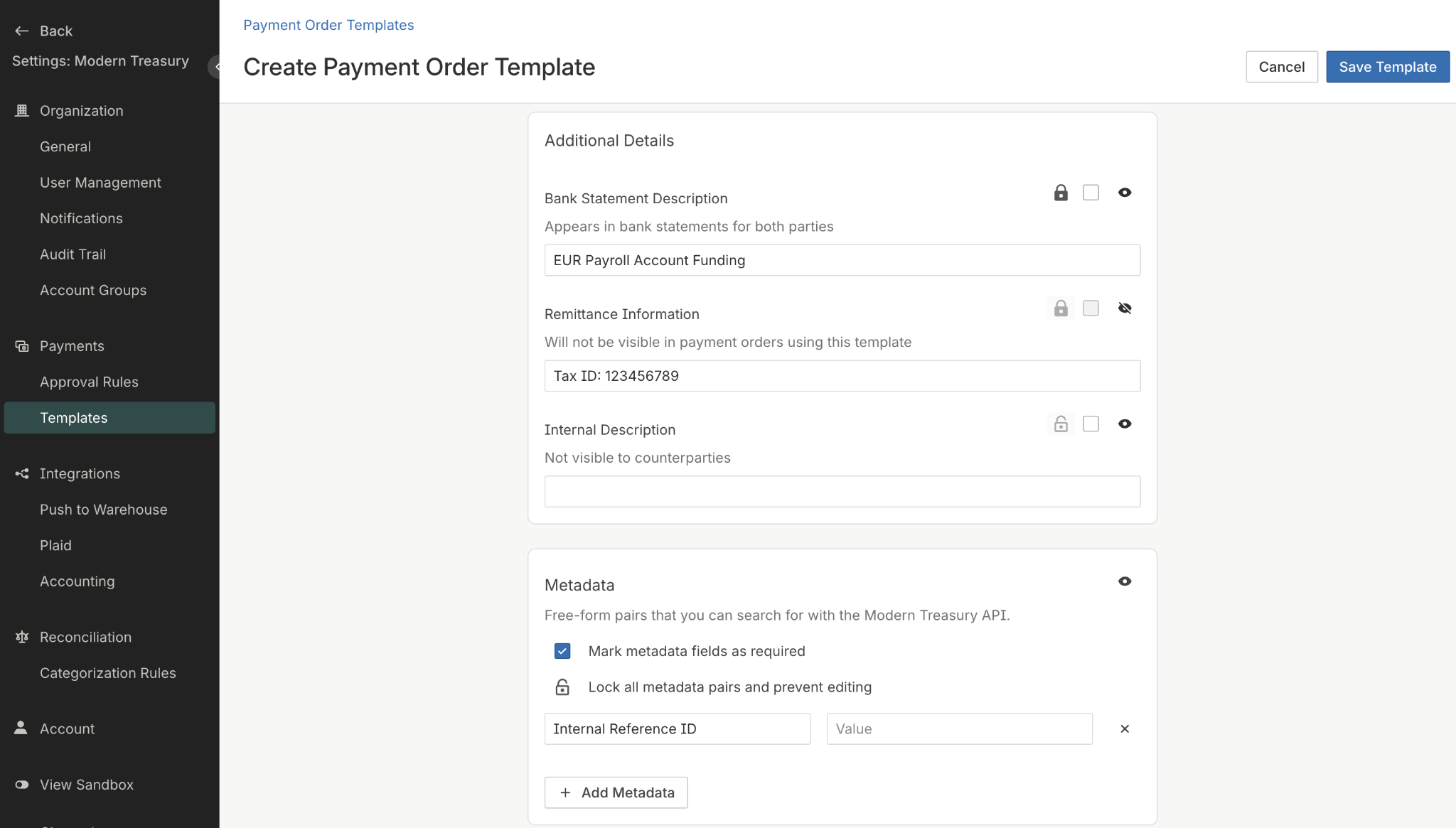
Hide fields like Remittance Information if it includes sensitive content like taxpayer identifiers
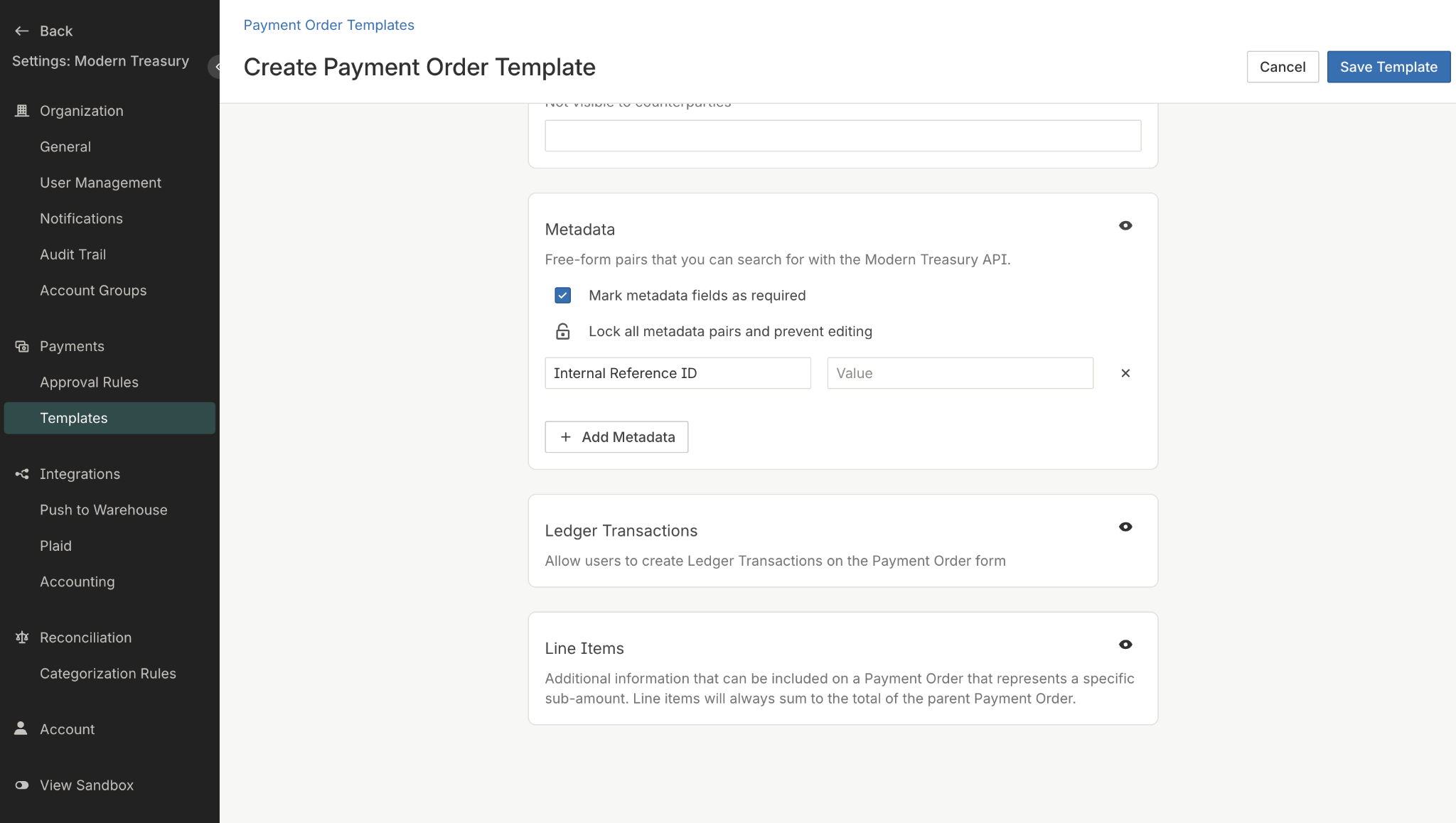
Require addition of important metadata for internal audit and reconciliation
Updated 12 months ago